






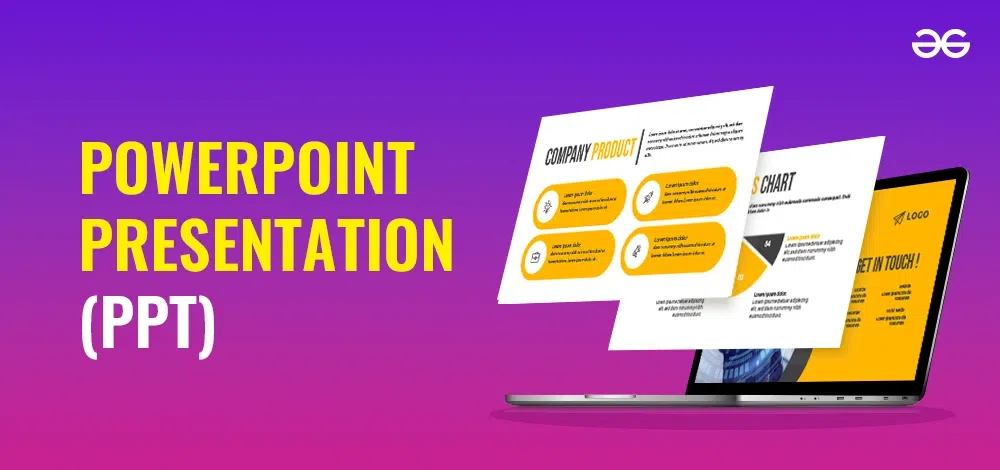
If you’ve ever attended a business meeting, lecture, or online class, you’ve probably heard the term PPT. But what exactly does it mean? Understanding the PPT full form is the first step toward creating presentations that engage, inform, and leave a lasting impression. Whether you’re a student, professional, or educator, mastering PPT can elevate your communication and make your ideas more persuasive.
In this article, we’ll explore the PPT full form, discuss its applications across various fields, and share practical tips for creating presentations that stand out.
What is the PPT Full Form?

The PPT full form is PowerPoint Presentation.
PowerPoint, developed by Microsoft, is a software application widely used to create digital slideshows that combine text, images, charts, animations, and multimedia. The term PPT is commonly used in schools, colleges, offices, and conferences to refer to both the file format (.ppt or .pptx) and the presentation itself.
Key Points About PPT:
- Stands for PowerPoint Presentation
- Used to convey information visually and effectively
- Can include text, images, audio, video, and animations
- Popular in business, education, and professional training
Why PPT is Important
Understanding the PPT full form is just the beginning. The real value of PowerPoint lies in its versatility and ability to communicate complex ideas in a clear, structured way.
Benefits of Using PPT:
- Visual Learning: People retain more information when it’s presented visually. Charts, graphs, and images make concepts easier to understand.
- Professional Communication: PPT helps deliver business strategies, project updates, and reports in a polished, professional format.
- Engagement: Animations, transitions, and multimedia elements keep audiences engaged.
- Organization: Slides provide a structured way to present ideas logically.
- Flexibility: PowerPoint can be used offline, online, or as part of video presentations.
Different Types of PPT Presentations
The scope of PPT is broader than you might think. Depending on your purpose, presentations can vary in format and style.
1. Educational PPTs
Used by students and teachers to explain concepts, demonstrate experiments, or summarize lessons.
Features:
- Simplified text for clarity
- Visual aids like diagrams and charts
- Interactive slides for student engagement
2. Business PPTs
Used in corporate settings for reporting, strategy presentations, or pitching ideas to clients.
Features:
- Professional templates
- Financial graphs and analytics
- Clear branding and design
3. Training and Workshop PPTs
Used to train employees, conduct workshops, or deliver webinars.
Features:
- Step-by-step guidance
- Examples, case studies, and exercises
- Multimedia integration for better learning
4. Marketing and Sales PPTs
Used to pitch products, showcase campaigns, or demonstrate services.
Features:
- Persuasive content
- Eye-catching visuals
- Highlighting key benefits and ROI
PPT File Formats
When working with PowerPoint, it’s important to understand the different formats associated with PPT:
| Format | Description |
|---|---|
| .ppt | Original PowerPoint file format used in older versions |
| .pptx | Newer format introduced with Microsoft Office 2007, supports advanced features |
| .ppsx | PowerPoint Show, opens directly as a presentation |
| .potx | PowerPoint Template, used to create standardized slides |
Knowing the correct format helps in sharing, printing, and presenting your slides seamlessly.
How to Create an Effective PPT
Creating a presentation isn’t just about knowing the PPT full form; it’s about designing slides that communicate your message effectively.
1. Start with a Clear Objective
Know the purpose of your presentation. Are you educating, persuading, or informing?
2. Keep Slides Simple
Avoid clutter. Use minimal text and focus on key points.
3. Use Visuals Wisely
Incorporate images, charts, and infographics to make information digestible.
4. Engage Your Audience
Add questions, polls, or interactive elements to keep viewers involved.
5. Consistent Design
Use uniform fonts, colors, and templates for a professional look.
6. Practice Delivery
A great PPT needs a confident presenter. Rehearse timing, transitions, and explanations.
Common Misconceptions About PPT
Even though PowerPoint is widely used, many people misunderstand its purpose:
- Misconception 1: PPT is only for business.
Reality: PPT is versatile and used in education, training, research, and personal projects. - Misconception 2: More slides mean better content.
Reality: Quality matters more than quantity. Keep slides concise and focused. - Misconception 3: PPT replaces communication.
Reality: Slides support communication but cannot replace a clear, confident speaker.
Advanced Tips for PPT Users
Once you’ve mastered the basics, here are some advanced strategies:
- Use SmartArt and Charts: Convert complex data into visual diagrams.
- Incorporate Multimedia: Videos, audio clips, and animations enhance engagement.
- Leverage Templates: Professional templates save time and maintain consistency.
- Apply Transitions and Animations Sparingly: Overusing them can distract rather than enhance.
- Export to PDF or Video: Ensure your presentation is accessible across devices.
Conclusion
The PPT full form, PowerPoint Presentation, represents more than just slides—it’s a tool to communicate ideas, educate, persuade, and engage. By understanding its scope, formats, and best practices, you can create presentations that leave a lasting impression.
Whether you’re a student preparing for a class, a professional pitching a project, or an educator designing a workshop, mastering PPT skills is invaluable.
Start exploring the power of PPT today, apply the tips mentioned above, and see your ideas come to life. Share your favorite presentation tips or experiences in the comments and help others elevate their PPT game.


