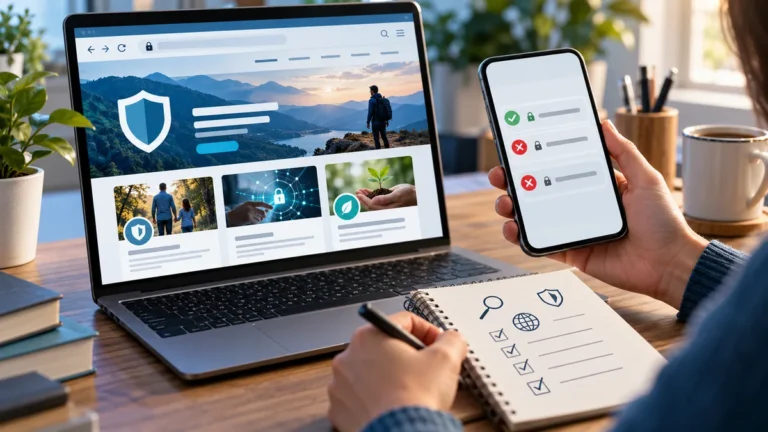
Quicklinks are convenient shortcuts to frequently used websites, services, and files. Students may see them on campus portals, employees on intranets, and SharePoint editors as a configurable web part. There is no single Quicklinks login: the correct shortcut depends on the organization or software that created it.
Table of Contents
What are Quicklinks?
Quicklinks are shortcuts that take users straight to commonly needed pages, tools, documents, or services. Instead of searching a website’s menus each time, a visitor selects an entry such as Student Portal, Staff Email, Library, Benefits or IT Help. The word describes a navigation method, not one universal login system or a product shared by every organization.
Quicklinks can appear as text lists, icons, buttons, tiles or searchable collections. A school may use them for timetables and learning platforms, while an employer uses them for payroll or internal procedures. Some links are public; others open a separate service that requires an institutional account. Knowing which website owns the links is more important than memorizing a generic “quicklinks login” address.
Why schools and workplaces use shortcut hubs
A shortcut hub reduces repetitive searching. For students, it makes email, registration, learning materials, and financial services easier to reach. For employees, it brings together leave requests, staff policies, training systems, help desks and announcements. Publishers may also use quicklinks to guide readers to popular reference pages.
Good hubs group tasks by audience and label buttons according to their destination rather than vague terms like “Click Here.” They also review broken destinations, because a shortcut becomes frustrating when a campus replaces its learning system or a business updates its sign-in service.
For context around education and campus research, Tech CEE’s Virginia Tech admissions explainer illustrates a separate informational resource, while its entry-level jobs guide addresses career discovery. Neither is a claimed official quicklinks portal.
Quicklinks login: find the right official portal
A search for quicklinks login often leads to a collection of links rather than a login page itself. First identify the organization you belong to. Then visit its official website, look for Students, Employees, Intranet, Resources or Quick Links, and select the named service. If authentication is required, expect to be redirected to the approved university, employer or government sign-in service.
Check the full web address before entering a password. A result with the right logo or page title can still be a misleading copy. Never use a stranger’s shared credentials, and don’t enter a one-time code into a form you reach from an unexpected email. For broader background on examining unfamiliar domains, see Tech CEE’s website safety and domain guide.
How to add Quick Links in SharePoint
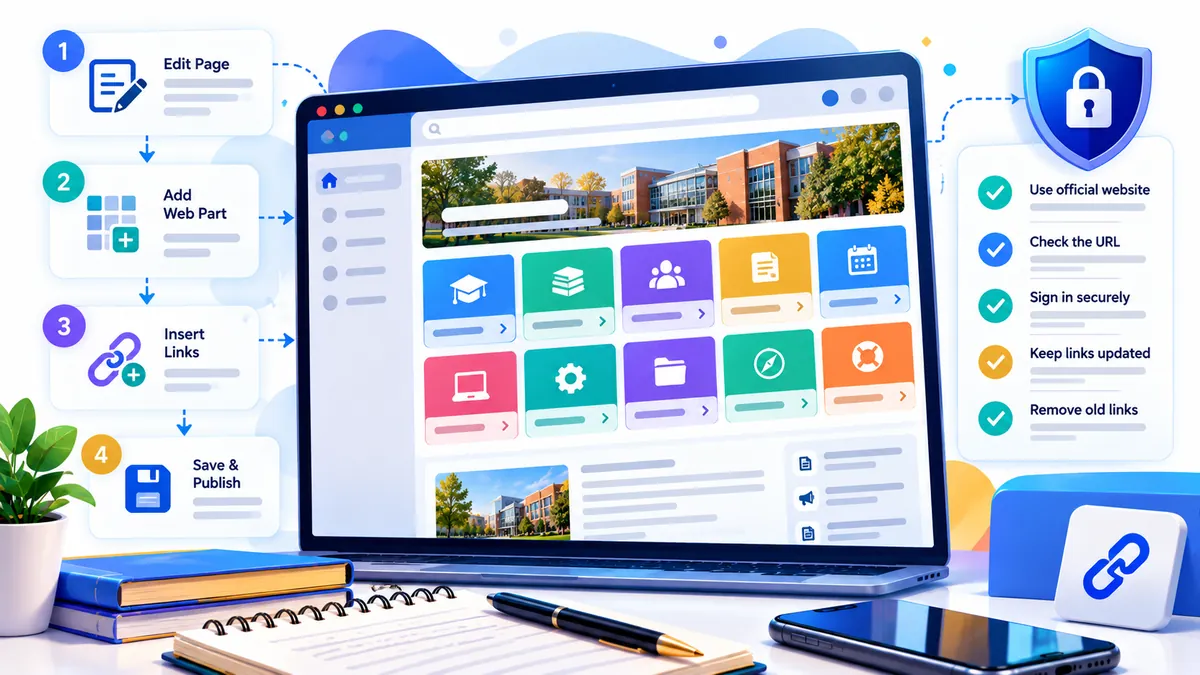
Microsoft SharePoint provides a dedicated Quick links web part on modern pages. Someone with suitable editing permission can place a collection of shortcuts on a page, choose how the collection looks and add links to documents, other pages or external locations. This is different from editing the site’s global navigation menu, which has its own controls.
According to Microsoft’s official Quick links web part instructions, begin by opening the page and choosing Edit. Use the web-part toolbox to select Quick Links, enter a clear heading, and choose a layout. Select Add links to choose an existing file or paste a destination, then insert and configure the item. Review the page and publish or republish it when finished.
Depending on layout and permissions, editors can adjust icons, descriptions, order and audience targeting. Teams often choose compact or list views for practical resources and tile-style layouts for a small set of prominent destinations. If a control is missing, permissions or a staged Microsoft 365 feature rollout may explain the difference.
Design and accessibility tips for SharePoint links
Keep titles descriptive: “Course registration” is clearer than “Important.” Avoid two buttons with the same label pointing to different systems. Group links into sensible categories and check mobile layout, keyboard focus and contrast. For frequently changed systems, put responsibility for maintenance with a named site owner.
Audience targeting can show relevant items to particular groups but is not a substitute for actual permissions on the destination. A student who cannot open a restricted document still needs proper access, even if its link appears in a web part. Test destinations using appropriate accounts, and remember that a page’s visible links do not confer permission to view sensitive content.
Readers learning unfamiliar interfaces may find separate general tutorials useful, such as the Tech on Dicas tips guide. That article is background reading, not official SharePoint documentation.
Student Quicklinks: Brockport, Creighton, Seattle U and UNG
Searches for Brockport quicklinks, Creighton quicklinks, Seattle U quicklinks, and UNG quicklinks represent different institutions. They must not be sent to the same unverified login page. Each school controls its own student accounts and frequently changes page labels, so navigate from the institution’s main domain rather than a reposted shortcut directory.
SUNY Brockport is a useful documented example: the university explains that its Quick Links moved away from the main navigation and that student resources are reached through its Information For area. Its student pages identify services such as webmail, Brightspace, and Brockportal. That is not evidence that another university has identical systems. For Creighton, Seattle University, or the University of North Georgia, start from their respective official site and look for current student or faculty resource menus.
If you’re researching college choices and portal access, keep admissions data separate from authentication instructions. Your application status, timetable, and fees may live in different official systems.
CHSU and PLNU Quicklinks: check your role
The queries CHSU quicklinks and PLNU quicklinks generally express the same navigation problem: finding services supplied by a named institution. Do not assume that search snippets exposing “portal” or “mail” buttons are up to date. Look on the institution’s own site for role-specific instructions for students, faculty, staff and alumni.
If your credentials fail, confirm that you chose the right account type and that the school hasn’t moved to a new authentication system. Contact its official help desk for account recovery instead of following an unsolicited reset link. A publicly available shortcut may lead to a private system without giving outsiders access.
Navy Quicklinks and other agency directories
Navy quicklinks are not the same as school shortcuts. The US Navy’s MyNavy Portal provides a categorized Quick Links directory for personnel resources; some destinations require a CAC or other approved sign-in. Start from an official .mil address and follow the relevant account and device policies.
Searches for MCFRS quicklinks, RCSD quicklinks and EBR quicklinks may refer to local services, staff sites, districts or agencies whose abbreviations overlap with other organizations. Without a matching official homepage, inventing a login destination or claiming all three names refer to the same kind of institution would be misleading. Resolve the organization’s full name, then use its own website to identify its current shortcut hub.
Security expectations are especially important on government and emergency-service networks. Personnel should follow their employer’s approved authentication process and never use unofficial mirrors of restricted resources.
Jabil Quicklinks and internal employee resources
Corporate searches such as Quicklinks Jabil may point to employee resources, benefit portals or internal company documentation. Unlike a public resource page, these systems may be restricted to staff, contractors or particular network locations. The existence of a keyword query does not verify a public Jabil login address or authorize access to a private portal.
For business readers interested in organizational services, Tech CEE’s business consulting overview discusses broader workplace context. A company’s quicklinks directory is an operational convenience, not proof that another business has permission to access its internal systems.
Usborne Quicklinks for books and learning
Usborne Quicklinks has a different educational use. Usborne’s own site connects books with selected websites, videos, quizzes and activities. Readers typically use the book title or accompanying Quicklinks keywords to find its recommended materials. It is a reading resource, not the student login page of a university.
Because many destinations are on third-party sites, parents and teachers should supervise children and check links before sharing them. Links may change or become unavailable after a book is printed. Tech CEE also has a separate multi-topic website review illustrating why the quality of an individual destination matters more than the label of the directory that led you there.
Raycast Quicklinks: desktop shortcuts instead of portals
Raycast Quicklinks belong to a desktop productivity launcher, not a college website. Raycast lets people save a web address, file, folder, deep link, or search URL under a searchable name. A user can then open that destination from Raycast’s command interface without browsing a website’s navigation.
Raycast’s Quicklinks can be personal or shared within an organization, and they support search arguments. That makes them useful for repeated workflows, but the shortcut still opens the underlying service with its own permissions. Treat shared Quicklinks as convenience features, and review any unfamiliar URLs before launching them.
For a separate look at handling desktop applications, Tech CEE’s software download guide and software upgrade overview discuss related issues; neither is official Raycast support documentation.
Troubleshooting broken Quicklinks
When a shortcut does not work, first check whether the main organization website is available. Then inspect the exact destination address, whether your account is active, and whether a browser extension or stale bookmark is interfering. Try accessing the service by navigating from the current official resources page instead of using an old saved link.
If the shortcut redirects somewhere unexpected, stop before signing in. Do not bypass access controls or upload identity documents to a new domain simply to resolve an error. A legitimate help desk can confirm whether an employee portal has moved or whether a student needs a different account. A stable internet connection matters too; Tech CEE’s wireless connectivity article offers separate general background.
How to maintain a useful links page
Site owners should name each shortcut meaningfully, clearly distinguish public and restricted resources, and review the list periodically. Avoid overwhelming readers with every possible system at once. Popular tasks belong near the top; more specialized resources can appear under headings that describe an audience or department.
A quarterly check can catch dead links, changing usernames and replaced services. Track which links are used where analytics and privacy policies permit, but avoid exposing people’s individual browsing behavior. An accessible, trustworthy hub saves time because visitors know both where the link goes and who maintains it.
Content publishers can apply the same principles. The GlaadVoice review is another independent Tech CEE resource about recognizing a website’s actual function before treating a search phrase as evidence of a specific service.
Frequently asked questions
What are Quicklinks on a website?
They are labeled shortcuts to frequently used pages, tools or documents. The shortcut may be public, while its destination can require a separate login.
How do I add Quicklinks in SharePoint?
Edit a modern SharePoint page, select the Quick links web part, choose Add links, insert the destinations, and publish the page. Available layouts and settings depend on your organization’s permissions and Microsoft 365 features.
Is there one Quicklinks login for every school?
No. Universities, schools, agencies and employers run different authentication systems. Visit your organization’s official site and select the correct resource for your student or staff role.
What is the difference between Usborne and Raycast Quicklinks?
Usborne Quicklinks connect books to curated external learning content. Raycast Quicklinks are user-created shortcuts to websites, files, folders, or searches inside a desktop launcher.
Final thoughts
Quicklinks are a simple navigation idea used in very different settings. Microsoft SharePoint page editors, university students, US Navy personnel, book readers, and Raycast users may all encounter the word while looking for unrelated resources. The reliable method is to identify the owner of each shortcut collection and follow current first-party instructions.
This guide was researched in October 2026. Institution menus and destination URLs can change without notice; use official support channels to access your account, and never rely on a guessed login address based only on a search keyword.
About the Author